🧩 TRAY BOARD

GAME SETUP
Think of this page as some technical information that provides further details about the game controls, none of which is essential for great gameplay. It's really aimed at those who want to more fully see what to expect before they start to play. If you are so minded, then please read on. If not, we suggest you jump right in and start playing. You can always return here if ever you find a need.
THE MENU
ACCESSING GAME SETUP | CONTROLS ALWAYS AVAILABLE | RESHUFFLE TRAY
BEFORE FIRST MOVE | AFTER FIRST PLACEMENT
GAME SETUP — introduction
Game Setup is the temporary, lift-up control drawer used to configure Tray Board.
Select Game Setup at the top-right of the screen to open it. The same controls are available on phones, tablets, laptops and desktop screens, although they stack vertically on narrower screens and arrange horizontally where more width is available.
Opening Game Setup does not move, resize or reset the Tray Board, its piece tray or any correctly placed pieces. Close it to return to an unobstructed board-first view.
OPENING AND CLOSING GAME SETUP
Select Game Setup at the top-right of the game screen.
Close the drawer by:
- selecting the ✕ button;
- selecting the dimmed area behind the drawer; or
- selecting Play in Browser, Return to Game, or Resume & Return to Game, according to the current state of the puzzle.
Closing Game Setup does not change the puzzle, timer, placed pieces, tray order or saved-game state.
CONTROLS ALWAYS AVAILABLE IN GAME SETUP
These remain available whenever Game Setup is opened:
MODE
Select Shuffle Board, Tray Board or Full Jigsaw.
Changing mode opens the selected game in its board-first view.
PIECES
Choose 9, 16, 36, 64 or 100 pieces.
Changing the number of pieces starts a fresh Tray Board game using the current picture and replaces the current Tray Board save.
GHOST
Show or hide the faint guide image displayed on the board.The ghost image helps you identify where pieces belong. Hide it for a cleaner and more challenging puzzle.
STATS
Show or hide the time, best time, number of placed pieces and percentage completed.
CHOOSE PICTURE
Open the picture gallery and select another puzzle.Choosing another picture starts a fresh Tray Board game and replaces the current Tray Board save.
PLAY FULL SCREEN
Open Tray Board in genuine fullscreen play.Browser controls disappear and the game uses the available physical screen. Fullscreen controls are then available through the three-dot menu.
RESHUFFLE TRAY
Reshuffle Tray is not part of the normal Game Setup drawer.
During normal browser play, the reshuffle control is attached directly to the piece tray:
- on portrait screens, it appears at the left of the bottom-docked tray;
- on landscape screens, it appears alongside the right-docked tray.
Select Reshuffle to change the order of the remaining loose pieces. Correctly placed pieces stay fixed on the board.
The control becomes unavailable while the game is paused and disappears when only one loose piece remains.
In fullscreen play, Reshuffle Tray is available through the three-dot menu instead.
BEFORE YOUR FIRST MOVE
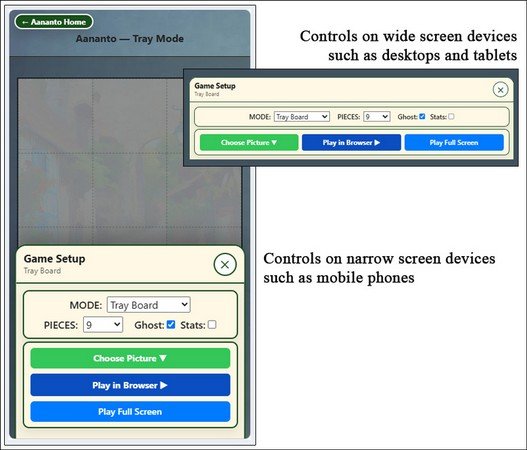
Make your choice of picture by using Choose Picture for the Tray Board game.Select Play in Browser to close Game Setup and begin playing in the normal browser view.
Select Play Full Screen for the largest and most immersive puzzle area.
Save & Pause is not shown until the first move has been correctly placed.
AFTER YOUR FIRST PLACEMENT
The controls change to include:
Choose Picture | Return to Game | Play Full Screen | Save & Pause
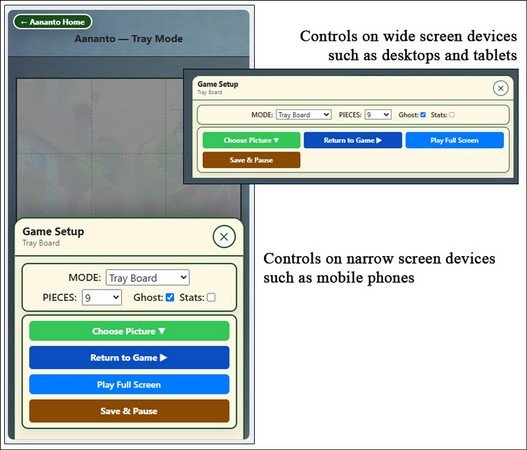
Select Return to Game to close Game Setup without changing the running game.
Select Save & Pause to save the current Tray Board position and stop the timer.The positions of correctly placed pieces and the order of the remaining tray pieces are retained.After saving, Resume & Return to Game replaces Return to Game.
AFTER SAVING OR LOADING A SAVED GAME
A white status cell confirms that the game has been saved or loaded.
The principal blue action changes to: Resume & Return to Game
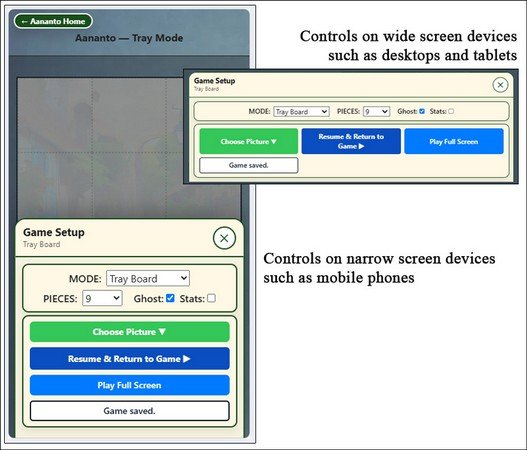
Select Resume & Return to Game to restart the timer, close Game Setup and continue playing in one action.The board, correctly placed pieces and remaining tray order are restored.
AFTER COMPLETING THE PUZZLE
The white status cell confirms that the puzzle has been completed.
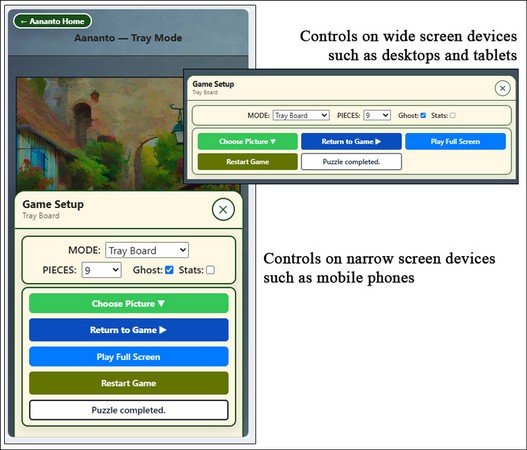
Select Restart Game to play the same picture and piece count again from a fresh tray.Choose another picture or piece count to begin a different puzzle.