🧩 TRAY BOARD

SMALL SCREEN CONTROLS
On phones and smaller tablets, the controls may look different from the controls you see on larger screens.
The available actions remain the same, but their layout may change to suit your screen size and orientation.
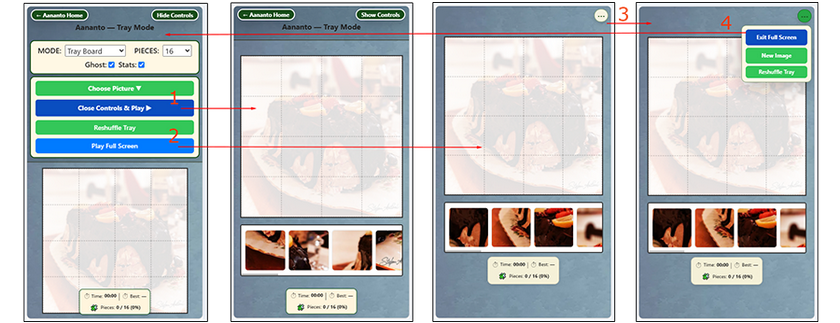
Controls Visible | Controls Hidden | Full Screen (3-dot menu closed) | Full Screen (3-dot menu open)
The image above shows controls visible, controls hidden, Full Screen with the 3-dot menu closed, and Full Screen with the 3-dot menu open.
There are usually three useful ways to view and play the game:
1. Controls visible
The full controls panel is shown at the top of the screen. This is useful when you want to change mode, change the number of pieces, choose a picture, save, resume, reshuffle, or use Play Full Screen. On very small screens, the controls may leave less room for the board and pieces.
The full controls panel is shown at the top of the screen. This is useful when you want to change mode, change the number of pieces, choose a picture, save, resume, reshuffle, or use Play Full Screen. On very small screens, the controls may leave less room for the board and pieces.
2. Controls hidden
Use Hide Controls to give the board and puzzle pieces more space. This is often the best play view on small portrait screens. Use Show Controls when you need to return to the controls panel.
3. Play Full Screen
Play Full Screen gives a simplified play view with a small 3-dot menu button. Tap the 3-dot menu to access important actions such as exiting full screen, choosing a new image, saving and pausing, resuming play, restarting, or reshuffling where available.
The available actions remain the same for your current game state, but their layout may change to suit your screen size and orientation.
In Tray Board, portrait screens may place the tray below the board, so Hide Controls can give you more practical playing space while keeping the tray accessible. Play Full Screen provides a separate simplified view with actions available from the 3-dot menu.