🧩 ARTISAN JIGSAW
HOW TO PLAY ARTISAN JIGSAW
ARTISAN JIGSAW – PLAYER HELP AND INSTRUCTIONS
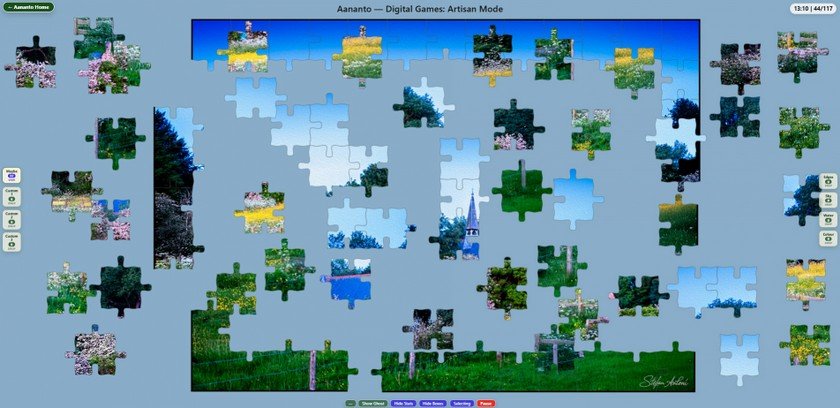
Artisan Jigsaw is AANANTO’s full tabletop digital jigsaw experience.
Loose pieces, open space, sorting boxes and classic shaped cuts let you tease real jigsaw forms into place at your own pace.
Your aim is simple: join all the pieces together on the tabletop and complete the picture.
Unlike the fixed-board modes, Artisan behaves more like a real tabletop jigsaw.
Pieces begin loose. You move, sort, compare, join, store, restore, and gradually build the image.
ARTISAN JIGSAW – CONTROLS
STARTING A PUZZLE
- When Artisan opens, you may first see a full preview image.
- Select the preview image to play it, or choose another picture from the gallery.
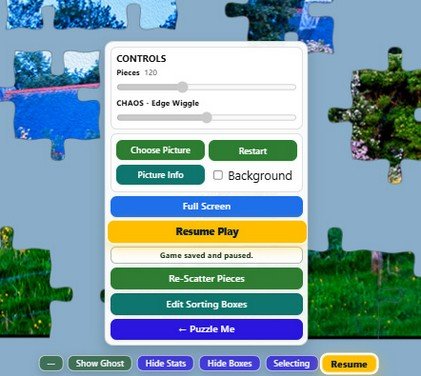
- Before the first move, you can adjust:
- Pieces — changes the approximate puzzle size.
- Chaos / Edge Wiggle — changes how irregular or lively the jigsaw cuts feel.
- Once play begins, these settings are locked until you restart or choose another picture.
- Full Artisan keeps one saved Artisan game for the account currently signed in.
MOVING PIECES
- Drag any loose piece around the tabletop.
- When compatible pieces are brought close enough together, they join automatically.
- Joined pieces form a cluster and can then be dragged together.
- Clusters are treated as part of the developing jigsaw.
- They are not placed into Sorting Boxes and are not captured by marquee selection.
GHOST IMAGE
- Use Ghost to show or hide a faint reference image behind the puzzle area.
- This can help you judge where pieces may belong, especially with larger or more complex puzzles.
- Hide it when you want a cleaner tabletop or a purer challenge.
STATS
- Use Stats to show or hide the compact progress display.
- Stats may include elapsed time and joined-piece progress.
- They are optional and can be hidden for a cleaner tabletop.
SAVE, PAUSE AND RESUME
In full Artisan, Pause saves the current game to your AANANTO account and then pauses play.
- The lift-up controls provide the same action as Save & Pause.
- A successful save displays Game saved and paused.
- When you return to Artisan, an unfinished saved game is loaded automatically and opens safely paused.
- Select Resume or Resume Play to continue from where you left off.
- Saved progress includes the picture, joined pieces, loose-piece positions, Sorting Box contents, labels, timer and current settings.
- The saved game follows the same member across supported browsers and devices.
- Artisan Taster sessions can be paused, but are not saved to the full Artisan account slot.
RE-SCATTER PIECES
- Use Re-Scatter Pieces to spread loose pieces around the tabletop again.
- This affects loose single pieces only. Joined clusters remain together.
- Re-scatter is useful when pieces become crowded, hidden, or difficult to inspect.
SORTING BOXES
- Use Sort / Show Boxes to show or hide the eight Sorting Boxes.
- Four boxes appear on each side of the tabletop.
- The default arrangement is:
- Sorting Boxes let players temporarily remove loose pieces from the tabletop, making a busy puzzle easier to organise.
- They can be used for:
- edge pieces
- sky or water
- dark areas
- strong colours
- text or signatures
- “maybe later” pieces
Left: Maybe, Custom 1, Custom 2, Custom 3
Right: Edges, Sky, Water, Colour
- Sorting Boxes can be renamed by the player (see RENAMING SORTING BOXES below) to give a more personalised experience.
- The three Custom boxes are intended for categories chosen and named by the player
- Only loose single pieces can be stored. Joined clusters remain on the tabletop.
STORING PIECES IN SORTING BOXES
- Drag a loose piece onto a Sorting Box and release it.
- The piece disappears from the tabletop and the box count increases.
- You can also use marquee selection to gather several loose pieces, move them as a group, and drop the group into a Sorting Box.
VIEWING STORED PIECES
- Click a non-empty Sorting Box to open its viewer.
- The viewer shows the stored pieces as true jigsaw-shaped pieces, not simple rectangular thumbnails.
- This makes it easier to inspect piece shapes, colours, and image detail.
In the viewer, you can:
- Click a piece – return that piece to the tabletop.
- Return All – return every piece in that Sorting Box.
- Small / True / Large – change the display size of pieces inside the viewer.
- Drag the viewer header – on tablet and desktop screens, move the viewer aside to see more of the tabletop.
- Returned pieces appear on top of the tabletop pieces so they are easy to find.
RENAMING SORTING BOXES
- Open the controls menu and choose Edit Sorting Boxes.
- The editor lists the left-side boxes first, followed by the right-side boxes.
- Enter the names you want and select Apply.
- The visible Sorting Box labels change immediately.
- The new names are preserved with your AANANTO account when the Artisan game is saved using Pause or Save & Pause.
- If the page is refreshed before the Artisan game is saved, the previously saved names return.
- Renaming a box does not move or alter the pieces stored inside it.
- Use Reset to restore the eight system names.
MARQUEE SELECT
- Use Select to turn on marquee selection.
- When Select is active, drag across empty tabletop space to draw a selection rectangle.
- Loose pieces inside the rectangle will appear with glowing edge.
- You can then drag one selected piece to move the selected loose pieces together as a temporary group.
- A Marquee selection is temporary. Entering or leaving Full Screen, rotating the device, or otherwise changing the screen layout clears the selection and removes the blue outlines.
Important:
- only loose single pieces are selected
- joined clusters are not selected
- selected pieces do not become a cluster
- selection is a temporary movement aid
- dropping a selected group into a Sorting Box stores the selected loose pieces
Use Select when you want to quickly gather a group of pieces by area, colour, or type.
PICTURE INFO
- Use Picture Info to view information about the current image, such as name, author, dimensions, and copyright details.
SHARING A JIGSAW
- Full Artisan members can share eligible AANANTO jigsaws as private gifts. Artisan Create members can also share their own Personal Jigsaws.
- Use Share This Jigsaw to create a fresh private gift link. The recipient does not need AANANTO membership to play.
- Use My Shared Jigsaws to see gifts you have sent, received thank-you messages, send a fresh gift again, or revoke an active gift.
Learn more: How to Share an AANANTO Jigsaw
FULL SCREEN
- Use Full Screen for a more immersive tabletop.
- This is especially useful on tablets, laptops, desktop screens and larger monitors.
- The ← Aananto Home control is hidden while Full Screen is active and returns when Full Screen is closed.
- Any temporary Marquee selection is cleared when entering or leaving Full Screen. Joined clusters and ordinary game progress remain intact.
RETURNING TO AANANTO
- Use ← Aananto Home at the top left to return directly to the AANANTO Home Page.
- Open the lift-up controls and select ← Puzzle Me to return to the page containing all four game modes.
- The Home control is hidden during Full Screen play.
CHOOSING ANOTHER PICTURE
- Use Choose Picture to open the gallery and select a new image.
- Starting a new picture resets the current puzzle state.
- In full Artisan, the newly started puzzle replaces the previous saved Artisan game for that account.
RESTART
- Use Restart to begin the current picture again with a fresh scatter.
- Stored pieces, joined pieces, elapsed progress and the current puzzle arrangement are cleared.
- In full Artisan, the fresh restarted puzzle replaces the previous saved Artisan game for that account.
KEYBOARD SHORTCUTS
- On devices with a keyboard, some shortcuts may be available:
F – Full ScreenC – ControlsR – Re-Scatter PiecesP – Picture GalleryEsc – close open panels or overlays
TIPS FOR ENJOYABLE PLAY
- Start by sorting obvious pieces: edges, strong colours, sky, water, shadows, text, or signatures.
- Use the Ghost image when you want guidance, then hide it when you want a purer challenge.
- Use Sorting Boxes to clear space, but open the viewer when you want to inspect stored pieces carefully.
- Use Select to gather several loose pieces quickly, especially in larger puzzles.
- Re-scatter loose pieces when the tabletop becomes crowded.
- Most of all, take your time. Artisan Mode is designed for looking, sorting, remembering, and discovering – the quiet pleasure of a jigsaw puzzle brought to the screen.
🧩 Ready to start playing Artisan Jigsaw? Sign in or sign up to begin 🧩